 Papr for macOS
Notes as quick as a text message.
Press ⌃ Space over whatever you're doing, type the thought and send it. Papr steps away again, and the note stays on your Mac as a plain file.

A real recording of Papr beside Safari. Nothing is drawn or sped up.
How it works
Three moments, from any app.
Papr comes up as one box to type into, in the same spot on your screen. Whatever you were doing stays right behind it.
-
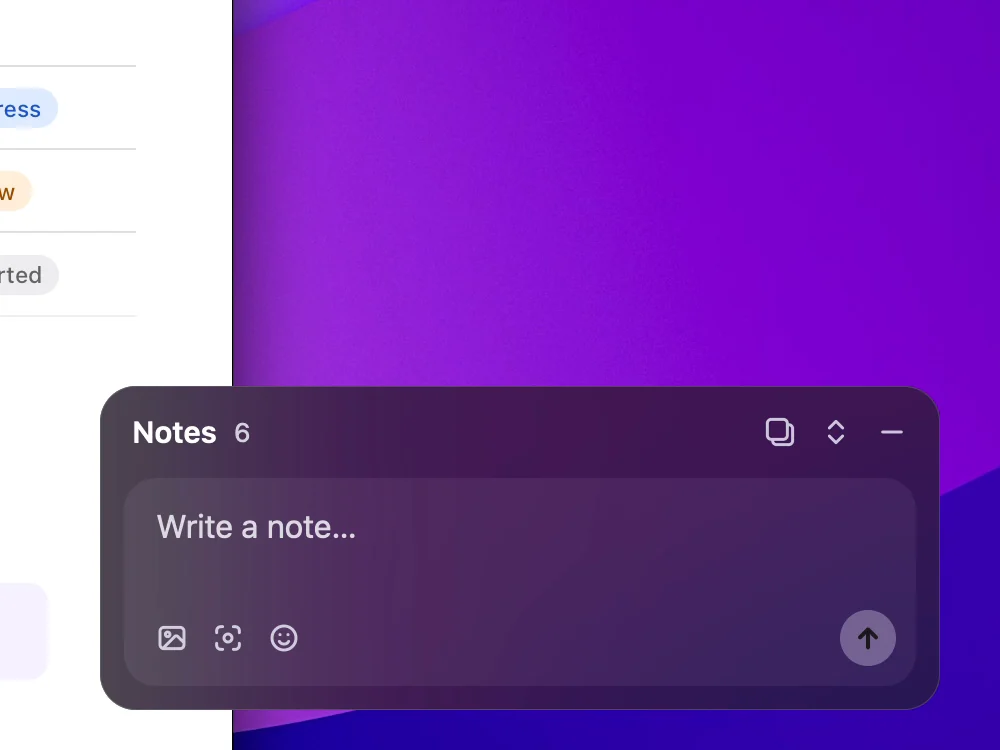
Press ⌃ Space
Papr springs up, already focused, ready to type. The same key sends it away again, over full-screen apps and on every Space.
-
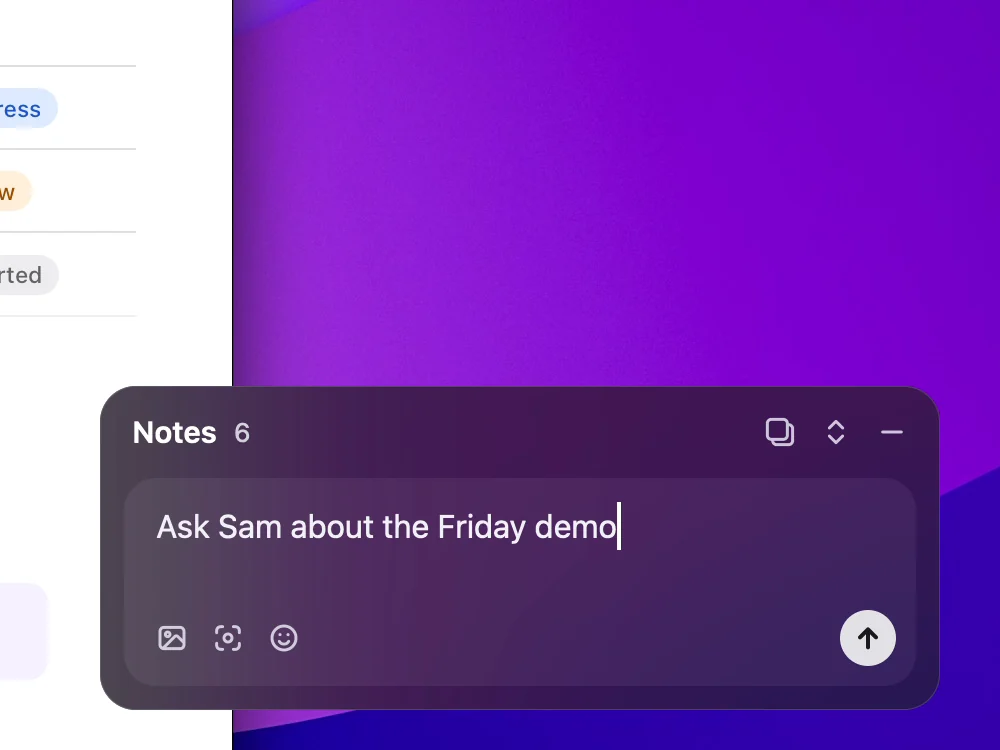
Write
Type the thought, as short or as long as it needs to be. Hide Papr mid-sentence and the draft waits for you.
-
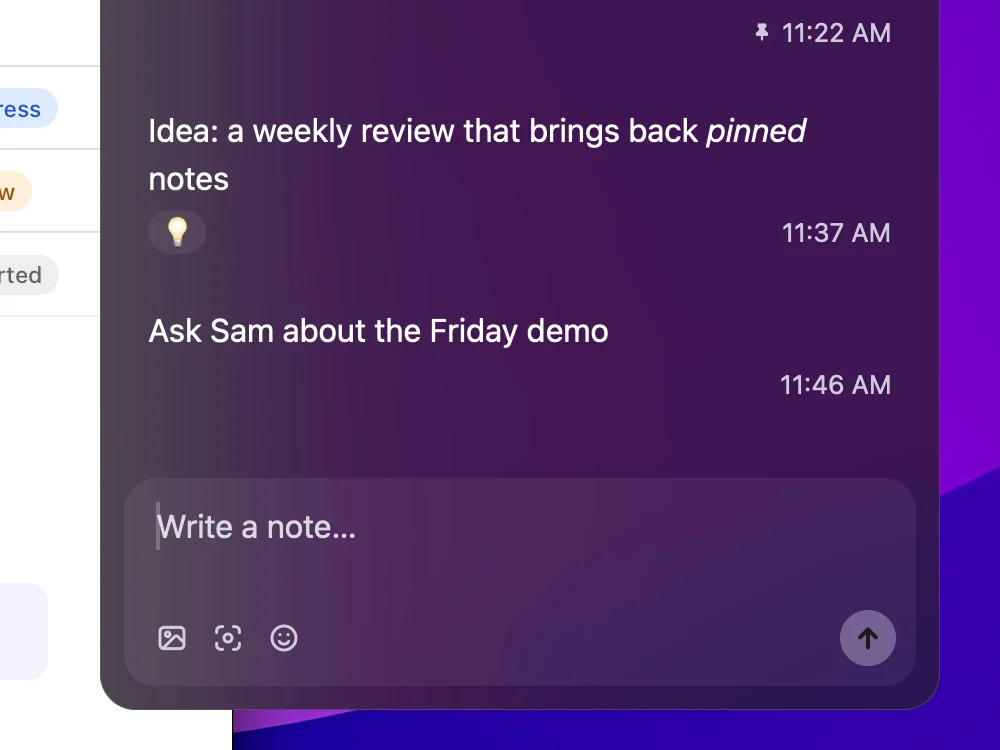
Send
The note lands in your list with its time, ready to find again. Press the key, and get back to work.
Where it helps
Built for the moments notes get lost.


Write
Everything a note can hold.
This is Papr's window, exactly as it looks on a Mac. Pick a part to see it up close.


- Capture the screen behind itOne click puts what's on your screen into the note you're writing, with Papr itself left out. Draw on it, add an arrow, highlight a line or cover a name.
- React to labelReact to any note with an emoji. It's a label you can filter by, and a way to find it again.
- Nothing jumps when you sendThe composer shows the note as it will look while you type, and follows your Mac from light to dark.
Find & organize
Find anything again. One place per part of your life.

Search finds any note as you type. Narrow it to a tag, a reaction or a collection, and pin the notes you keep coming back to.
- SearchFinds any note as you type and highlights the match, whatever the case or accents.
- Tags and reactions as labelsAdd a #tag or react with an emoji, then filter by either.
- PinsPin the notes you'll need again. They wait on a banner at the top, one click away.
- RemindersChoose when a note should come back. It shows up as a notification, and a click takes you to it.

Keep work apart from groceries, each in its own collection. Switch in a second, from the drawer or the keyboard.
- CollectionsNotes start in Notes. Add one for personal errands, a course, a reading list or anything else, and move notes between them.
- All in one viewAll shows the notes of every collection together, only when you choose it.
- ArchiveDone with a note but not ready to delete it? Archive it. It stays searchable, out of the way.
Yours
Your notes are files on your Mac. No account, no analytics, nothing uploaded.
Open them in any app, back them up any way you like, and take them with you if you ever leave.
- Notes
- Each note is a Markdown file in Documents › Papr, one folder per collection, with its pictures next to it, saved after every change. Edit a file in another app and Papr follows.
- License checks
- Activating sends your license key, your Mac's name and a one-way hash of its hardware ID to Polar's license API, and Papr re-checks about once a day. The hardware ID itself never leaves your Mac.
- Free trial
- The day your trial began is kept on your Mac, in Papr's data folder and your Keychain, so it can count the 14 days. During the trial Papr also sends a one-way hash of your Mac's hardware ID to our trial server, which keeps only that and the day it first saw it.
- Updates
- Update checks and downloads come from GitHub, where Papr's releases are published. Nothing about you or your notes is sent.
- Purchases
- Polar handles payment details. We receive your email and order details from Polar to provide your license and support.
- This site
- No cookies for tracking. The whole privacy page.
Pricing
One license, one Mac. Move it when you switch Macs.
- Try it freeDownload Papr and use everything for 14 days. No key, no account.
- Buy PaprPay through Polar's checkout.
- Get your license keyPolar gives you the key with your purchase and keeps it in your Polar customer portal.
- Paste it into PaprIn Papr, open Settings → License → Enter license key, paste the key and press Activate.
Launch price $4.99, regular price $20.
- One Mac per license key
- New Mac? On the old one, choose Settings → License → Deactivate on this Mac first (or remove the old Mac in your Polar customer portal), then activate the key on the new one
- Lifetime updates: every new version, installed with one click (or on its own if you turn that on). Each update's signature is checked first
- Works offline: the license is re-checked about once a day and keeps working for 30 days without a connection
- 14-day refund: if Papr isn't right for you, email support@papr.nemixe.com within 14 days of purchase for a full refund. Refunds are issued through Polar to your original payment method, and a refunded license key stops working
Purchases are processed by Polar.
Opening Papr the first time
Papr is signed by its developer but not yet notarized by Apple, so macOS warns you the first time you open it. You only need to do this once.
- Open Papr onceWhen macOS says it could not verify Papr, click Done.
- Allow it in System SettingsOpen System Settings → Privacy & Security, scroll down and click Open Anyway next to the message about Papr.
- ConfirmEnter your Mac password or use Touch ID. Updates install without asking again.
- Allow DocumentsWhen macOS asks whether Papr may use your Documents folder, click Allow. Papr keeps your notes there and needs it to open.
FAQ & support
Questions you might have. Quick answers.
Can I try Papr before buying?
Yes. Download Papr and everything works for 14 days, with no key and no account. After that your notes stay readable and searchable, and you can still copy, move or delete them; writing needs a license. Buying later picks up right where you are: enter the key in Settings → License.
Where are my notes, and can I open them without Papr?
Each note is a Markdown file in Documents › Papr, one folder per collection, so you can open, edit or back them up with any app. Yours has the details.
Does Papr need an account or send my notes anywhere?
No account and no analytics, and Papr uploads nothing. What the license check, the trial check and updates do send is listed under Yours.
How do I show or hide Papr, and can I change the shortcut?
Press ⌃ Space from any app. The same shortcut sends Papr away again, and you can change it in Settings.
What does the license include, and how do I move it to a new Mac?
One Mac per license key, with lifetime updates. To move it, choose Settings → License → Deactivate on this Mac on the old Mac, then activate the key on the new one. Full terms are in Pricing.
What is the refund policy?
Email support@papr.nemixe.com within 14 days of purchase for a full refund. The details are in Pricing.
Why does macOS warn me the first time I open Papr?
Papr is signed by its developer but not yet notarized by Apple, so macOS warns you the first time. You only need to allow it once: follow Opening Papr the first time. This may change in a future release.
Support
Questions, a bug, trouble with your key? Email support@papr.nemixe.com and you'll get a reply from the developer.
Include your macOS version and, for license questions, the email you bought with.